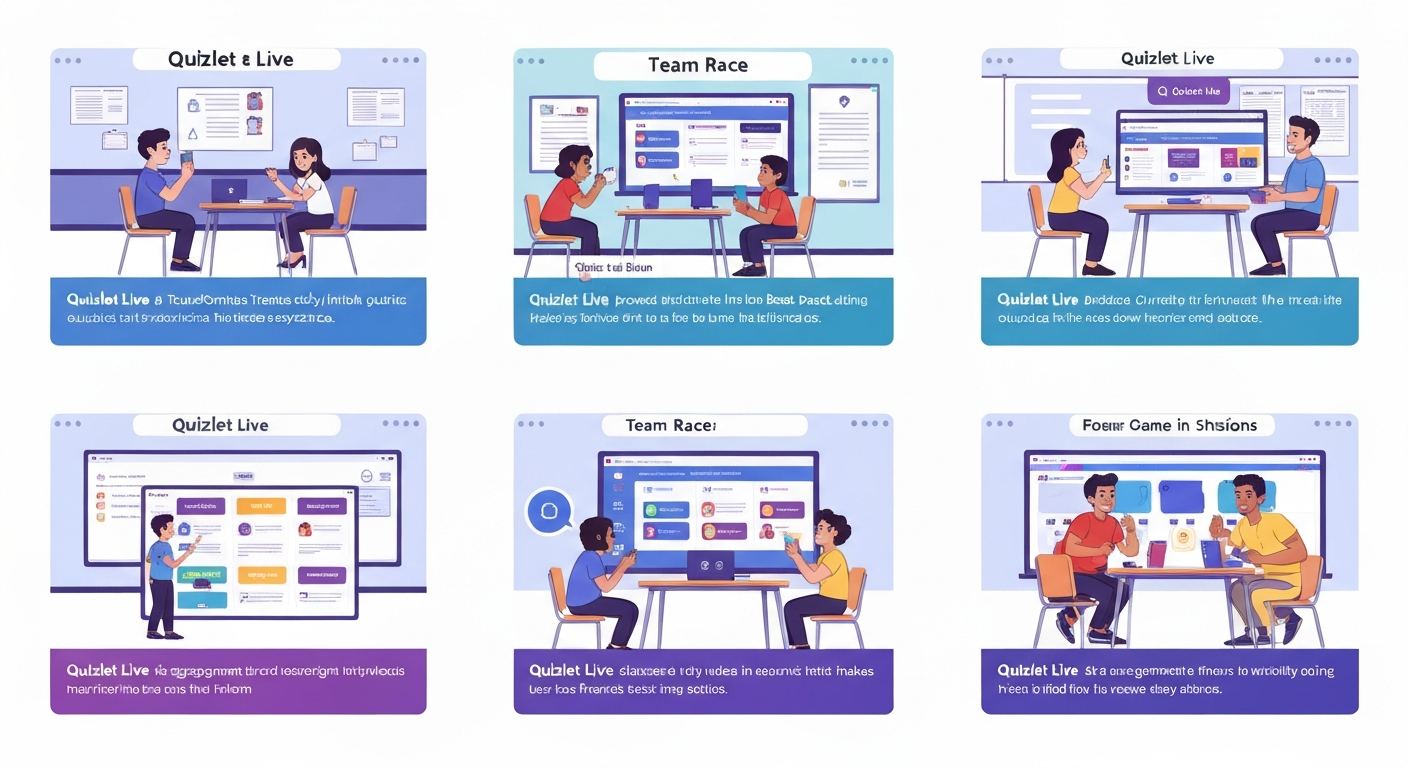
I want to show you how quizlet live makes class time fun and fast. This tool mixes game play with study. Teachers use it to turn review into a team race. Students learn by matching words and ideas. The game runs in real time on any device. It helps memory by making recall quick and social. In this article, I will explain what it is, why it works, and how to use it well. You will see step-by-step guides and real tips from my classroom notes. I will also cover common problems and smart fixes. Read on to learn how to add joy to study with tools that keep kids focused.
What is Quizlet Live and why teachers love it
quizlet live is a team-based classroom game built by Quizlet. It turns study sets into quick rounds. Teachers start a session and students join using a code. Teams form automatically from the join process. The game pushes students to recall and match facts fast. It builds friendly pressure and teamwork. Many teachers like it for short reviews. It fits a warm-up, exit ticket, or test prep. The game shows answers only after teams finish a round. That keeps the focus on thinking, not copying. It also gives teachers clear live feedback on gaps. In short, it makes review lively and efficient for busy class days.
How Quizlet Live works step by step
First, create a study set on Quizlet. Then open the set and click the Live button. The tool gives a unique join link and code. Students go to the link or enter the code. Then they join the session. Quizlet sorts them into mixed teams. Each team needs everyone to pick correct matches. If one member picks wrong, the whole team restarts. Rounds are short, usually five to eight matches. After a round, the teacher sees which terms caused trouble. This quick cycle makes it easy to run more than one round in a single class. The steps are simple and fast.
Setting up your first session: a quick checklist
Prepare your study set before class. Make sure terms and definitions match the lesson. Check spelling and punctuation. Open the set and start Live mode. Note the join code or link the game gives. Tell students where to go or project the link. Ask students to use real names or initials for tracking. Decide how much time you will allow for each round. Plan for two or three rounds to keep energy high. Save a backup activity in case of tech hiccups. This small prep helps the session run smoothly and keeps kids learning.
Best practices for teachers running Quizlet Live
Keep rounds short and focused on one topic. Use clear, simple terms. Mix students of different skill levels on each team. Encourage discussion but not copying. Praise effort and quick thinking. Use the teacher dashboard to track tricky terms. Pause between rounds to discuss common errors. Try one round as a demo for new students. Vary teams so students meet new classmates often. Keep your tone upbeat and fair. These habits increase trust and help learning stick. Small steps make the game powerful and classroom time more productive.
Tips for students to win and learn faster
Read all options before choosing an answer. Talk quickly with teammates to agree. Use elimination when unsure. Watch for similar words that can trick you. If you get stuck, skip and come back fast. Learn from mistakes during round breaks. Keep your device charged and ready. Practice the same set outside class for better speed. Help your teammates with hints, not full answers. Over time, your recall will get faster. This game rewards quick thinking and teamwork over perfect memory. Play smart and you will both win and learn.
Handling technical issues and fairness
Internet slowdowns can happen during a round. Have a low-tech backup like flashcards. Ask students to reload the page if the code stops working. If a student loses connection, pause the round when possible. Use clear rules for late joins and device problems. If cheating occurs, explain expectations and reset teams. Track which students repeatedly lose time for device issues. Offer alternative ways to join for those students. Clear rules keep play fair and reduce stress. Tech hiccups are normal but easy to manage with a plan.
Using Quizlet Live for remote and hybrid classes
The tool works well for online lessons too. Share the join link in chat or on your learning platform. Have students mute and unmute only when needed. Pair remote students with in-class teammates for mixed play. Use breakout rooms to let teams talk fast. Keep rounds short to avoid screen fatigue. Use the teacher view to watch results live. Remote play keeps students engaged and reduces isolation. It also gives teachers a clear view of gaps. With simple rules, remote sessions can rival in-person energy.
Making sets that actually help memory
Good sets use clear terms and short definitions. Keep each card focused on one idea. Avoid long sentences and jargon. Use images where helpful to make memory cues. Organize sets into small groups for each round. Review tricky terms more often. Mix question types to test recall different ways. Test the set yourself before class to catch errors. Update the set after each class based on student mistakes. Real improvement comes from revisiting the same core ideas. Smart sets make the game more useful for long-term learning.
Assessment and data: reading the teacher dashboard
The dashboard gives live reports on class performance. It shows which terms students missed most. Use that data to guide the next lesson. Share results with students for reflection. Watch for broader patterns across many sessions. Save snapshots to track growth over a term. Use data to group students for targeted help. The dashboard makes review focused and fast. It turns play into useful feedback. When you let data guide your next steps, study time becomes more efficient.
Creative ways to use Quizlet Live beyond basics
Try using the game for vocabulary, dates, or formulas. Run team tournaments across classes. Use it for warm-ups on test day. Let students create their own sets to teach peers. Use mixed-grade matches for peer tutoring. Turn the final round into a class challenge with rewards. Use the game as a quick check before homework. These uses keep learning varied and fun. Creativity boosts both engagement and depth. The tool is flexible and fits many lesson types.
Privacy and classroom safety tips
Do not share personal emails or private info in game names. Ask students to use initials or first names only. Review school policies on online tools and consent. Make sure guest links are controlled in closed classes. If your class has younger students, ask parents for consent where required. Use clear rules to protect privacy and safety. Talk with your school tech lead if you have concerns. These steps keep the game safe while keeping participation high.
Accessibility and inclusion tips
Offer alternative ways to join for students with special needs. Use larger fonts and clear visuals. Read items aloud when helpful for audio learners. Allow extra time for students who need it. Pair students with supportive teammates. Make sure images have alt text in your master set. Check that the platform works on assistive tech. Inclusion ensures all students benefit from play and review. Small adjustments make a big difference in learning access.
My classroom story: a real example
In one class, I used a set for key science terms. Students seemed bored at first. I started a quick quizlet live round for fun. Teams formed fast and energy rose. A shy student explained a term to her team. She had just learned the word the week before. The team won the round together. Later, more students answered with the same clear words. The game showed me which terms to reteach. It also gave that shy student confidence. Small wins like this make class feel alive and rewarding.
Advanced tips: custom rules and tournaments
Try changing your reward system to motivate students. Use a points chart across days. Run small class tournaments with brackets. Let top teams make a short quiz for the class. Use mixed-ability teams to boost peer help. Rotate team captains to build leadership. Track progress publicly but kindly. Adjust rules for speed or accuracy based on goals. These tweaks make play deeper and more meaningful. With structure, the game can guide long-term growth across a term.
Conclusion
Now you have a full guide to using quizlet live well. Try a short demo round in your next class. Build simple sets to start. Use the dashboard to guide your next lesson. Keep rules clear and fair. Make small changes and watch engagement grow. If you need, share a sample set and I will help fine tune it. Play often, reflect with data, and tweak your approach. Small steps lead to better learning and more confident students. Enjoy turning review into a game that teaches for real.
FAQs
Q1: How do students join Quizlet Live?
Students open quizlet.live or the shared link. They enter the join code the teacher shows. They type a name and then join the team. The teacher can start rounds once most have joined.
Q2: What is a Quizlet Live code?
A Quizlet Live code is a short set of characters. It links the students to the teacher’s session. Each session gets a new code to keep play organized.
Q3: Can I use Quizlet Live on a phone?
Yes. The game works on phones, tablets, and laptops. Make sure browsers are updated and devices are charged.
Q4: Is Quizlet Live free to use?
Base features are free for many teachers. Some premium features may need a paid plan. Check Quizlet’s site for the latest details.
Q5: How many students can join one game?
Large classes can play. Teams are auto-made to fit the group size. If you have many students, you may run parallel sets or rounds.